Fixes After Ubuntu 26.04 Upgrade
After upgrading to Ubuntu 26.04 (Plasma 6.6.4), two bugs broke the tool:
- The ydotool package in 26.04 renamed the –delay flag to –key-delay. The old flag was silently ignored, causing ydotool to treat the value 2 as a literal string to type.
- Fix:
subprocess.run(["ydotool", "type", "--key-delay", "2", text + " "], env=env, check=True)
- Fix:
- Use the English-only model – changed MODEL_SIZE from “base” to “base.en”
Microphone Gain Tuning
The C930e has two independent gain stages that are easy to confuse:
- PipeWire/PulseAudio layer — what pavucontrol and KDE audio settings control
- ALSA hardware layer — the USB device’s own gain register, invisible to PipeWire The hardware gain defaults to 100% (50dB), which saturates the signal before PipeWire even sees it. Reduce it with:
amixer -c 1 set 'Mic' 80%. Find the right card number first witharecord -l. - To persist across reboots:
sudo alsactl store - To diagnose clipping, use
soxon the recorded file:sox /tmp/whisper_audio.wav -n statAim for a maximum amplitude of 0.4–0.7. Hitting 1.0 means hardware clipping regardless of software volume settings. - Best approach to debugging the issue is listening to the recorded file to identify clipping or distortion yourself, then tuning the gain till it goes away.
Recently I started experiencing pain at the dip joint of my ring finger. That prompted me to look into how I can use voice more instead of typing everything on my computer. Especially with AI use, the typing has increased a lot.
There are a lot of great solutions that exist for macOS, Windows, iOS and Android, but for Linux, I wasn’t able to find anything that worked as easily, so I’m documenting my setup for others who are on Linux and want to use Voice to Text better.
Note that my specific setup is Wayland and KDE, however, it can be adopted to non-Wayland and other distributions and desktops quite easily. Because it uses ydotool, it is not dependent on Wayland or KDE for text injection and should work in other desktop environments outside of Wayland and KDE reliably as well.
Here is a high level flow diagram of how the system works:
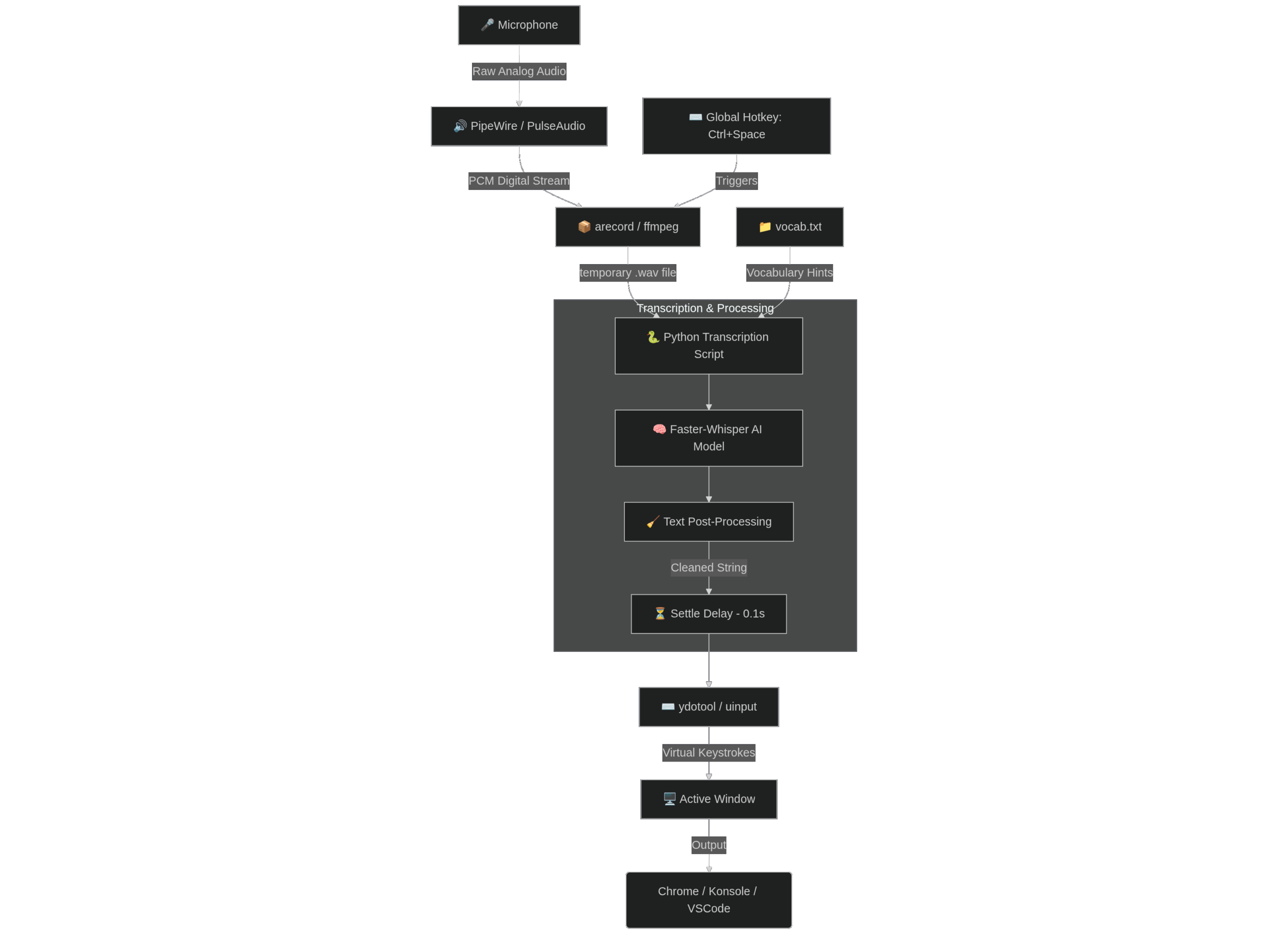
Here are the setup instructions for the setup I am using:
- Hardware – for microphone, I am using a Logitech C930E webcam that I had lying around. This was bought during the pandemic and hasn’t been used at all. Turns out it has a great microphone. You can also use a BT headset, but this works well for me.
- Select the microphone as your input source, use the digital stereo input option if you have multiple options.
- Install the necessary components:
- On Wayland, xdotool or trying to using wl-copy and then simulating ctrl+v to inject text into the active window does not work reliably. ydotool seems to be the most reliable way to inject text into the window under focus. ydotool essentially fakes/mimics an actual input source (like a keyboard).
- You will need arecord or ffmpeg for recording the stereo input to a wav file. Install via alsa-utils. You also need libnotify-bin (this shows a toast for recording/transcribing which is helpful to keep track of what’s going on).
- sudo apt install ydotool ydotoold
- Since faster-whisper relies on ffmpeg, you will need a working install of ffmpeg
- Create a python venv, we will use a python script that will do the capture + transcribe and inject into the focus window.
- In the venv, install these: pip install faster-whisper
- Create the whisper_toggle python script below
import os
import sys
import subprocess
import time
import signal
from faster_whisper import WhisperModel

# --- CONFIGURATION ---
MODEL_SIZE = "base"
DEVICE = "cpu"
COMPUTE_TYPE = "int8"
LOCK_FILE = "/tmp/whisper_lock"
AUDIO_FILE = "/tmp/whisper_audio.wav"

def notify(message):
    print(f"🔔 {message}")
    subprocess.run(["notify-send", "-t", "1000", "Whisper", message])

def start_recording():
    # 1. Create lock
    with open(LOCK_FILE, "w") as f:
        f.write(str(os.getpid()))

    notify("Recording... (Press again to stop)")

    # 2. Record using arecord
    # -q: Quiet mode
    cmd = ["arecord", "-f", "S16_LE", "-c", "1", "-r", "16000", "-q", AUDIO_FILE]

    try:
        # We use Popen so we can wait specifically for this process
        process = subprocess.Popen(cmd)
        process.wait()
    except KeyboardInterrupt:
        pass

def stop_and_transcribe():
    # 1. STOPPING
    # Give the OS a moment to flush the WAV header to disk
    time.sleep(0.5)

    if not os.path.exists(AUDIO_FILE):
        notify("❌ Error: Audio file missing.")
        return

    vocab_path = os.path.expanduser("~/whisper-tool/vocab.txt")
    rams_vocab = ""
    if os.path.exists(vocab_path):
        with open(vocab_path, "r") as f:
            # Join lines and remove extra whitespace to create a clean hint string
            rams_vocab = ", ".join([line.strip() for line in f if line.strip()])

    notify("Transcribing...")

    try:
        # 2. TRANSCRIBING
        # We load the model fresh each time (slower start, but saves RAM when idle)
        model = WhisperModel(MODEL_SIZE, device=DEVICE, compute_type=COMPUTE_TYPE)

        segments, _ = model.transcribe(
            AUDIO_FILE,
            beam_size=1,
            language="en",                 # <--- FORCE ENGLISH
            vad_filter=True,               # <--- IGNORE SILENCE
            initial_prompt=rams_vocab,       # <--- VOCAB HINTS
            condition_on_previous_text=False
        )

        text = " ".join([segment.text for segment in segments]).strip()

        if text:
            print(f"📝 RESULT: {text}")
            # We explicitly pass the YDOTOOL_SOCKET in case the hotkey environment lacks it
            env = os.environ.copy()
            env["YDOTOOL_SOCKET"] = f"{os.environ['HOME']}/.ydotool_socket"


            # Small delay for keyboard release
            time.sleep(0.1)

            # Paste using ydotool
            try:
                subprocess.run(["ydotool", "type", "--delay", "2", text + " "], env=env, check=True)
            except subprocess.CalledProcessError as e:
                print(f"❌ ydotool type failed: {e}")
        else:
            notify("⚠️ No speech detected.")

    except Exception as e:
        notify(f"❌ Error: {e}")

def main():
    if os.path.exists(LOCK_FILE):
        # --- STOP SIGNAL ---
        print("🛑 Stop signal received. Finishing recording...")

        # Send SIGINT (Ctrl+C) to arecord to make it save the file properly
        os.system("pkill -SIGINT arecord")

        # Clean up lock
        if os.path.exists(LOCK_FILE):
            os.remove(LOCK_FILE)
    else:
        # --- START SIGNAL ---
        try:
            start_recording()
            # Script pauses here until arecord is killed by the second instance

            # Once killed, we proceed:
            stop_and_transcribe()
        finally:
            if os.path.exists(LOCK_FILE):
                os.remove(LOCK_FILE)

if __name__ == "__main__":
    main()
- You need to add yourself to the input group and create a udev rule that allows access to the /dev/uinput device (used by ydotool) to the input group:
sudo usermod -aG input "$USER"
echo 'KERNEL=="uinput", GROUP="input", MODE="0660", OPTIONS+="static_node=uinput"' \
  | sudo tee /etc/udev/rules.d/80-uinput.rules >/dev/null
sudo udevadm control --reload-rules && sudo udevadm trigger- Log out and log back in (so groups membership is updated)
- Create a user-level ydotoold service so the daemon is started automatically when you log-in
cat > ~/.config/systemd/user/ydotoold.service
[Unit]
Description=ydotoold (uinput) daemon

[Service]
Type=simple
ExecStart=/usr/bin/ydotoold --socket-path=%h/.ydotool_socket --socket-own=%U:%G
Restart=on-failure

[Install]
WantedBy=default.target
Ctrl-D

systemctl --user daemon-reload
systemctl --user enable --now ydotoold.service- Make sure the daemon is running successfully.
- Test the python script – run in one terminal, start speaking, run in another terminal. If it all works, you should see the text of what you spoke in the second terminal.
- Map to a hot-key with KDE shortcut – I have mapped mine to ctrl+space.
- Add Command
- <full venv path>/python3 <path>/whisper_toggle.py
- Select your favored keyboard shortcut
Overall, this works surprisingly well, although it took a little bit of time and effort to set up. I really like how well it is working. One downside is when you’re actually using it to issue commands, it really does not work well. Those you probably have to type, but for any dictation like interface, this is pretty good.
For injecting specific words like names of people or other uncommon words or spellings that you use, you can populate your vocabulary or text and the script will automatically inject that into your prompt. This seems to work quite well for especially names of people when I’m texting them from my computer using WhatsApp.